Create Backups
Instance Backups
Backups create copies of your instance’s data to protect against accidental deletions, software failures, or security threats. By enabling backups, you ensure that a restorable version of your VM is always available if needed.
Cuemby Cloud provides automated backup options on a daily, weekly, or custom schedule, allowing for seamless data recovery without manual intervention. Implementing backups is crucial for safeguarding your data and reducing downtime in case of unexpected issues.
Creating Backup of an Instance
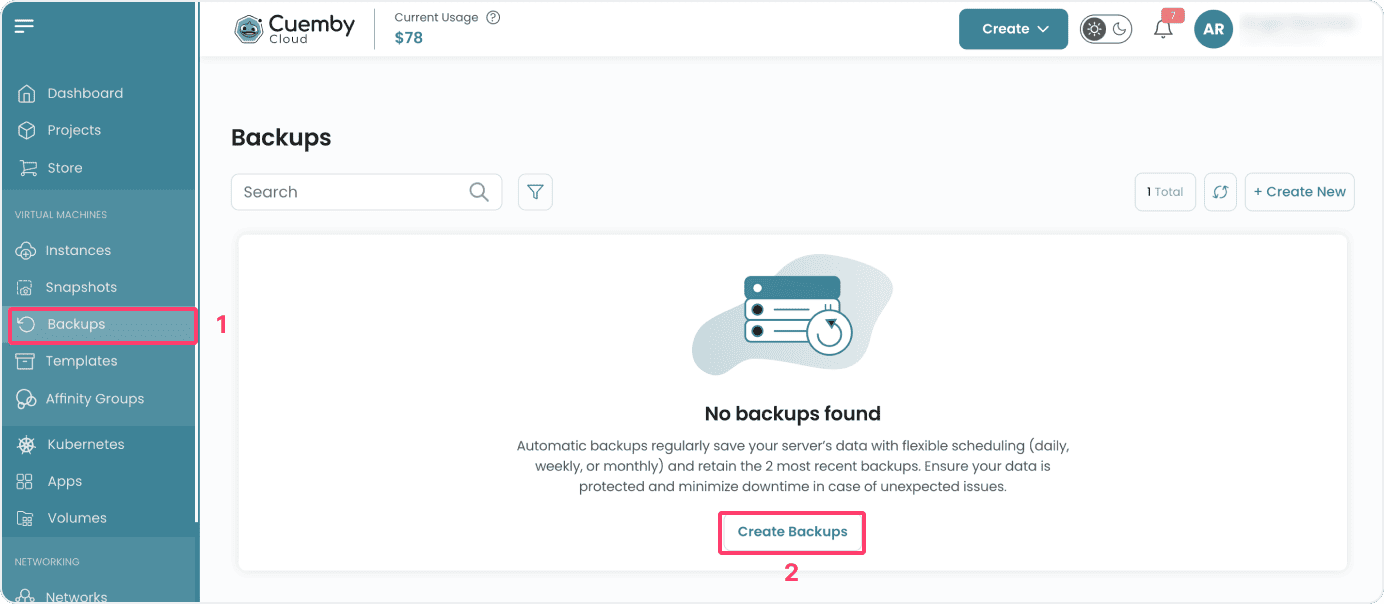
- From the left-hand side menu, click on the Backups tab.
- To create a backup, click on the Create Backup icon located inside the modal of the backups page. This will open the Backup creation page.
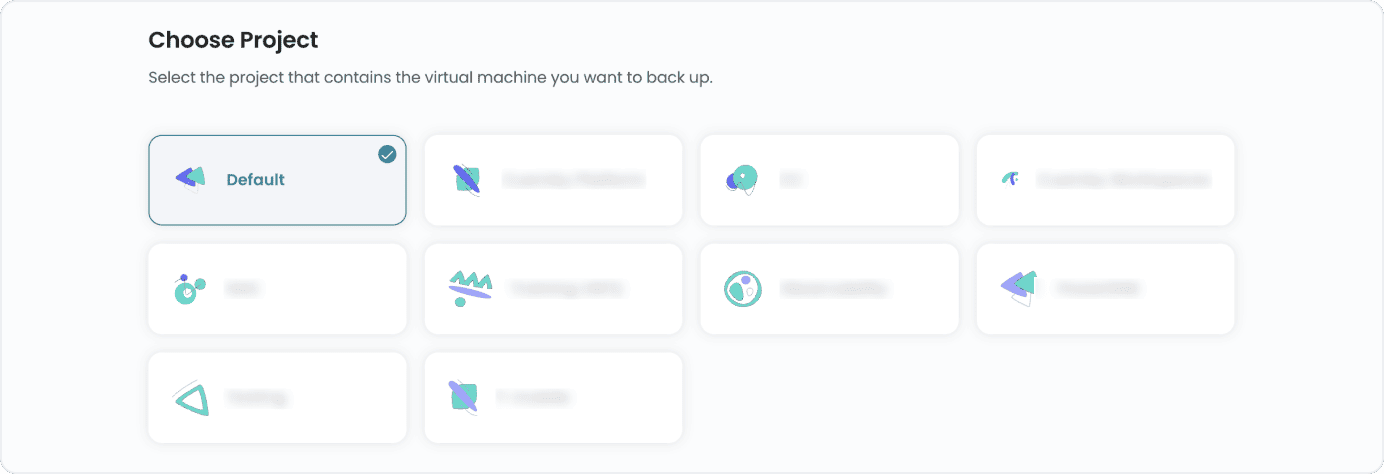
Assign to a Project
- Select the project that contains the virtual machine you want to back up.
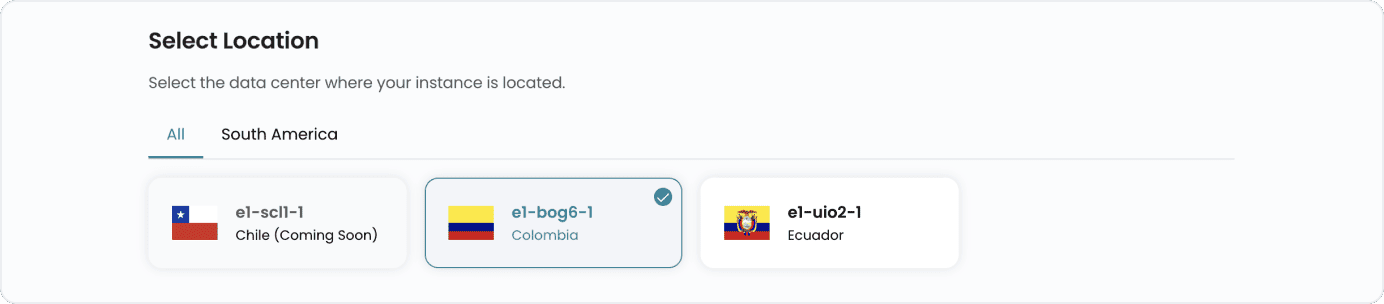
Choose a Location
- Select the data center location where your server will be physically hosted.
- Choose from the available locations listed.
Choose Instance
- From the Instances list, select the virtual machine instance for which you want to create a backup.

Schedule a Backup
- Set how often you want to back up by configuring intervals and specifying the time backups should be created.
NOTE
Automatic backups cost 20% of the virtual machine’s price.
- If you want to take a backup immediately while creating the schedule, select the Take One Immediate button.


Conclusion
By following this guide, you can easily create and manage backups on Cuemby Cloud. Backups provide a reliable way to protect your data, ensuring quick recovery in case of accidental deletions, software failures, or security threats. For further assistance, refer to the Cuemby Cloud documentation or reach out to support.