Load Balancer
Load Balancer
A Load Balancer helps distribute incoming traffic across multiple servers to ensure high availability, reliability, and improved performance. In Cuemby Cloud, you can set up a Load Balancer to handle web applications, databases, and other services efficiently. This guide will walk you through the steps to configure a Load Balancer in Cuemby Cloud.
Creating a Load Balancer
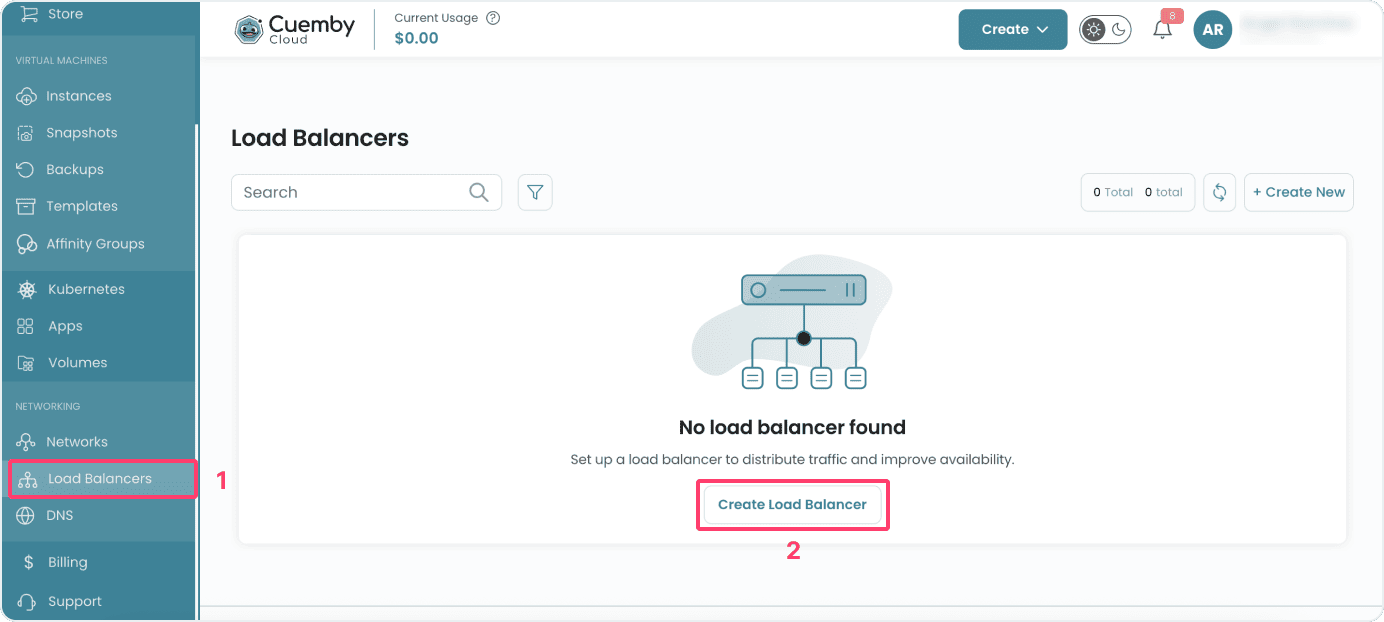
- From the left-hand side menu, click on the Load Balancer tab.
- To create a load balancer, click on the Create Load Balancer button located inside the modal of the Load Balancers page. This will open the load balancer creation page.
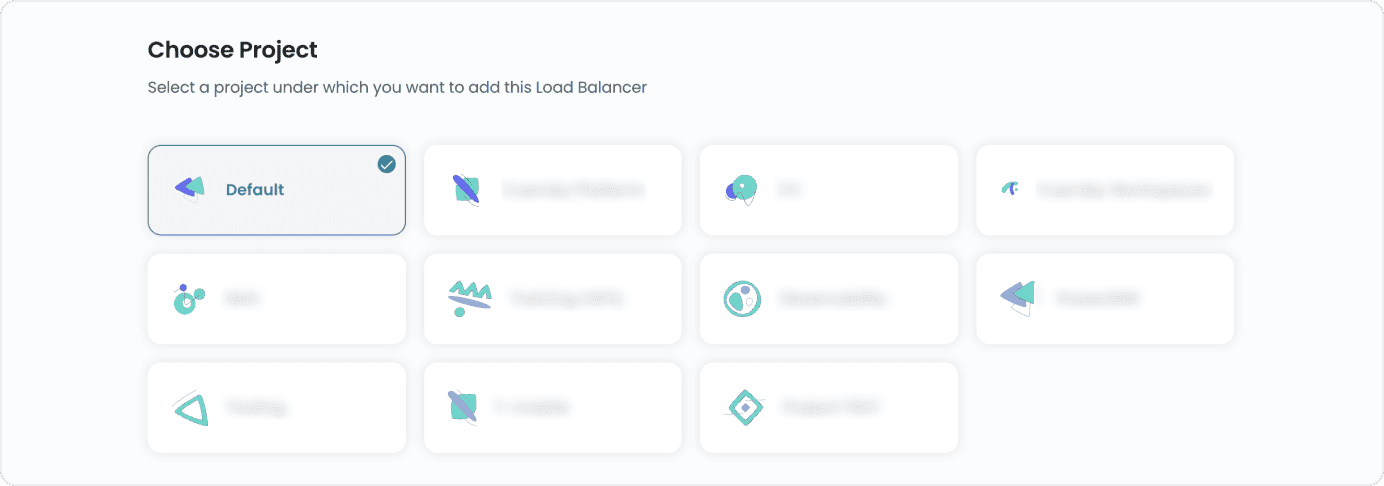
Assign to a Project
- Assign the load balancer to one of your projects to organize and manage resources effectively.
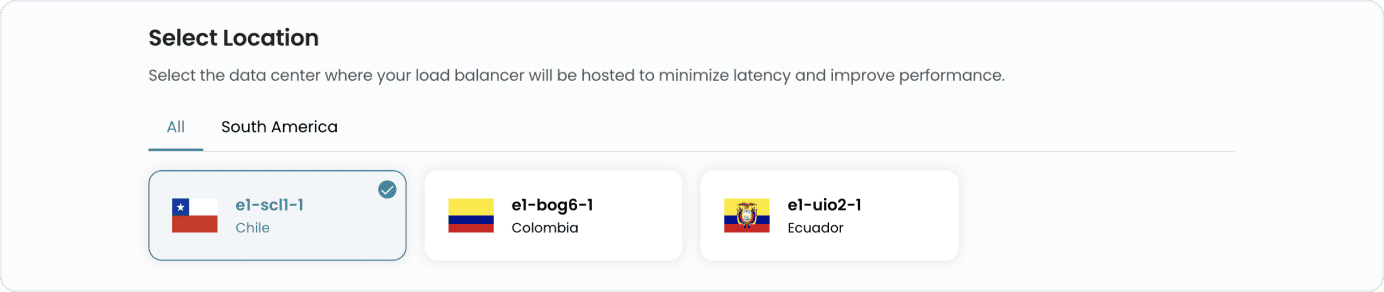
Choose a Location
- Select the data center location where your server will be physically hosted.
- Choose from the available locations listed.
Choose Network
- Select the network where your load balancer will operate. This will define the traffic flow and connections to your servers.

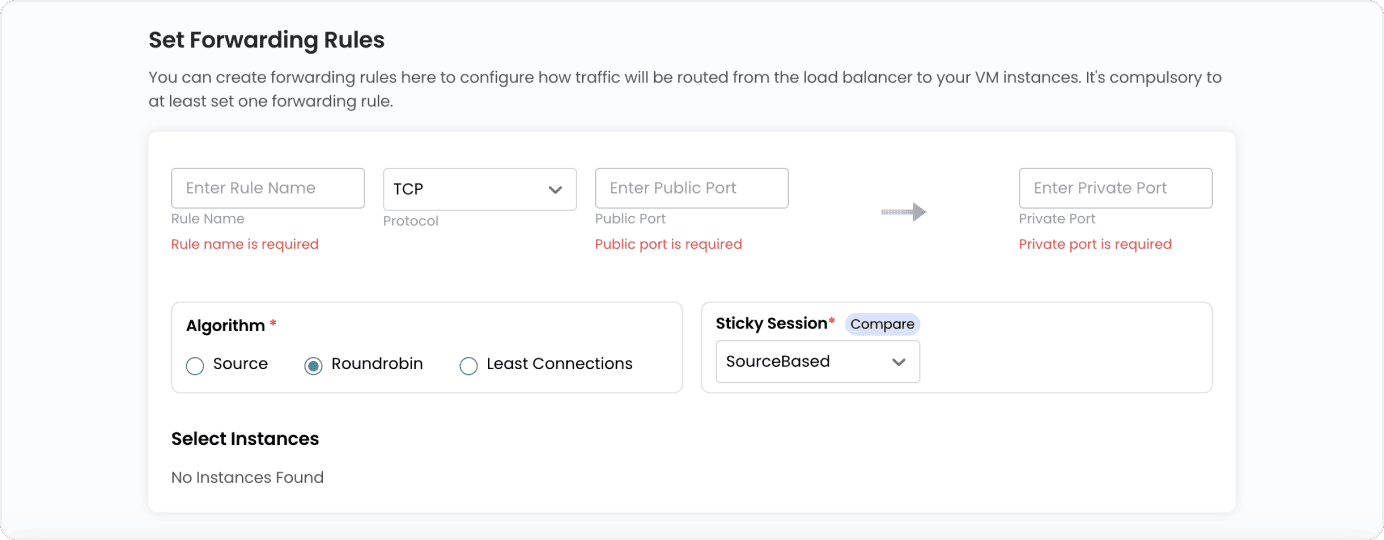
Set Forwarding Rules
-
Configure forwarding rules to define how traffic should be distributed across your servers.
-
Provide a unique Rule Name for the forwarding rule. Choose the appropriate Protocol (e.g., TCP, UDP, HTTP, HTTPS). Specify the port range for incoming traffic.
-
Select an algorithm to distribute incoming requests among instances:
- Source – Directs traffic to the same instance based on the client’s source IP.
- Round Robin – Distributes traffic evenly across all available instances.
- Least Connections – Sends traffic to the instance with the fewest active connections.
-
You can enable Sticky sessions ensure that a user’s requests are consistently routed to the same backend instance.
- LB Cookie – Uses a load balancer-generated cookie to maintain session persistence.
- App Cookie – Uses application-defined cookies for session persistence.
- Source-Based – Binds sessions to a backend instance based on the client’s source IP.
- None – No session persistence; requests are distributed normally.
-
Choose the VM instances that will handle incoming traffic.
Name Load Balancer
- Provide a unique name for your load balancer to easily identify it. The name can only include alphanumeric characters, dashes, and periods.

Create Load Balancer

View Load Balancer
- To view more about load balancer in detail, click on the Load Balancer.

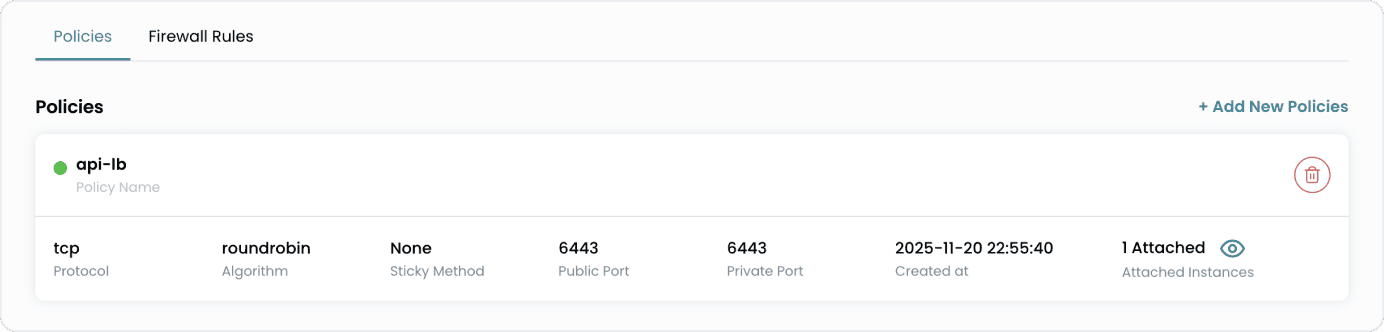
- You can view the policies associated with this load balancer.
Conclusion
By following this guide, you can easily configure and manage a Load Balancer on Cuemby Cloud. Load Balancers ensure high availability, reliability, and improved performance by distributing incoming traffic across multiple servers. For further assistance, refer to the Cuemby Cloud documentation or reach out to support.